Select Version of EA Desktop:
Depending on your company workflow, contract files can be added from the Project Tracker module or from the Contract module.
Before adding the contract, you must have at least one seismic record ready to link to the contract.
To add a new contract in the Contract Module:
-
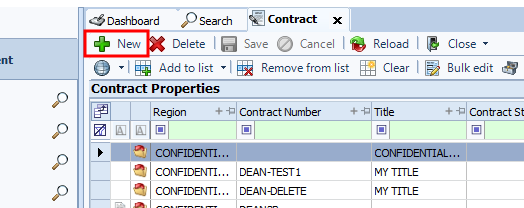
In the toolbar, click New.
 Tip:
Tip:Alternatively, you can right-click a row in the Contact Properties grid to open the context menu then click New.

-
The Create contract and link to seismic window opens with several tabs available for entering associated information.
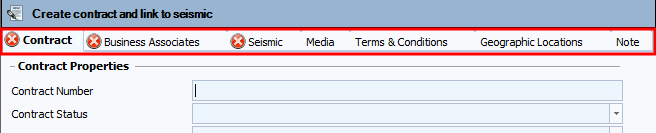
Each tab has a specific function
-
Contract: you enter the Information about the contract. Mandatory fields are Highlighted with an X. The Contract tab is required to be filled out before you save.
-
Business Associates: See: Assign or add a business associate
-
Seismic: See: Linking seismic to a new contract
-
Media: See: Add the contract media
-
Terms and Conditions: This tab allows you to attach Terms and Conditions to the contract. See: Add Terms and Conditions
-
Geographic Locations: You can add different Geographic Locations . See: Add Geographic Locations
-
Note:See: Add a note with a contract
-
Once you complete the form, click Save. The window will close and the new contract will be added to the grid.
A Contract ID will be generated for the new contract. An administrator can configure the Contract ID to have a custom prefix added to it.
Depending on your company workflow, contract files can be added from the Project Tracker module or from the Contract module.
Before adding the contract, you must have at least one seismic record or Business Associate ready to link to the contract.
To add a new contract in the Contract Module:
-
In the toolbar, click New.
Tip:Alternatively, you can right-click a row in the Contact Properties grid to open the context menu then click New.
-
The Create contract window opens with several tabs available for entering associated information.

Each tab has a specific function
-
Contract: you enter the Information about the contract. Mandatory fields are Highlighted with an X. The Contract tab is required to be filled out before you save.
-
Business Associates: See: Assign or add a business associate
-
Note:See: Add a note with a contract
-
Media: See: Add the contract media