Select Version of EA Desktop:
You can attach Terms and Conditions to a contract while it is being created, or to an existing contract from the related records tab.
No matter where you attach them, the procedure is the same.
To add Terms and Conditions to a contract you can use one of 2 methods
Enter Terms and Conditions Manually
-
Select the Terms and Conditions tab, either in the Related Records panel or in the Create contract and link to seismic window.
-
Click New. A Blank row will appear in the Grid.
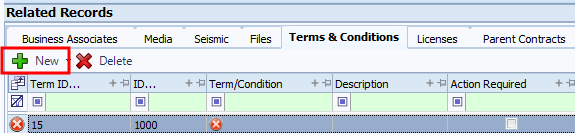
The TermID and ID are automatically generated.
-
For the Term/Condition field you can:
-
Select a predefined Term from the drop-down OR
-
Manually Enter a Term if it isn’t on the list.
-
-
If the Term requires an Action to be taken, select the checkbox, then you can select the user to assign the action to in the Action Assigned User column.
-
Fill in the other columns as required.
-
In the toolbar, click Save.
Select Terms from a list:
-
Select the Terms and Conditions tab, either in the Related Records panel or in the Create contract and link to seismic window.
-
Expand the New button and select Add from list.
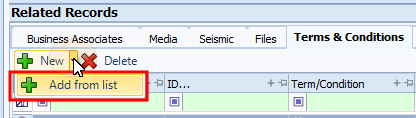
A window with a list of pre-defined terms opens.
-
You can select either a single term from the list by clicking on the row, or select multiple terms by pressing Ctrl and clicking on the row of each term.
-
Click OK
- The grid will populate with the selected terms. You can make changes as needed.
-
In the toolbar, click Save.
To delete Terms from a contract:
-
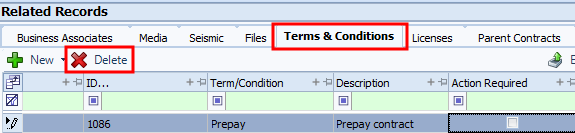
Select the Terms from the grid.
-
Click Delete.
-
From the confirmation dialogue that appears, click Yes.