Select Version of EA Desktop:
Just as when you Add Terms and Conditions, you can attach the Geographic Locations to a contract while it is being created, or to an existing contract from the related records tab.
No matter where you attach them, the procedure is the same.
To add Geographic Locations to a contract:
-
Select the Geographic Locations tab, either in the Related Records panel or in the Create contract and link to seismic window.
-
Click New. A Blank row will appear in the Grid.
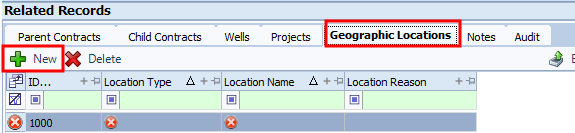
The ID is automatically generated.
-
There are 2 fields that are mandatory:
-
Location Type: Select the contents from this field from the drop-down list.
-
Location Name: Select from a drop-down list.
-
-
Fill in the other columns as required.
-
In the toolbar, click Save.
To delete a geographic location from a contract:
-
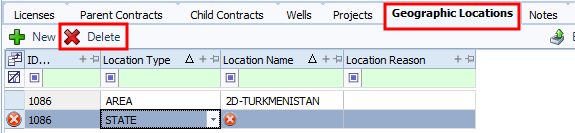
Select the Geographic Location or locations from the grid.
-
Click Delete.
-
From the confirmation dialogue that appears, click Yes.
$1 MadCap:conditions="Housekeeping.ExcludeForChatbot" $2