Select Version of EA Desktop:
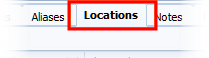
The Locations tab displays the location information associated to the selected record.
To delete a location from a seismic record(s):
-
Select the record(s) in the Seismic grid.
-
On the Toolbar click Additional tools and select Delete location.
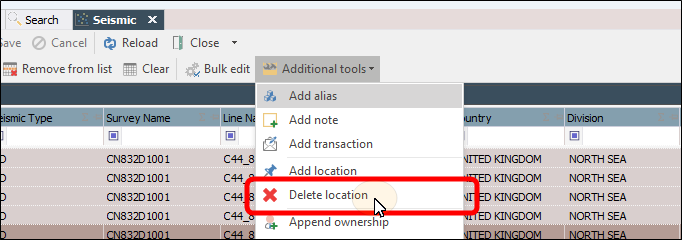
The Delete location window opens.
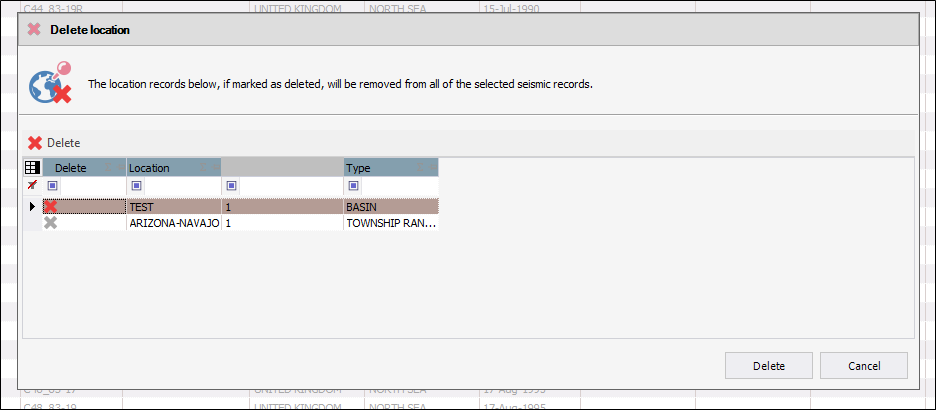
- Click on a row in the grid to toggle the Delete status on or off. A location is labeled with a red X if set to be deleted.
- Click Delete.
The highlighted location will be removed from the list.
Optionally you can:
-
Select a record in the Seismic Properties grid.
-
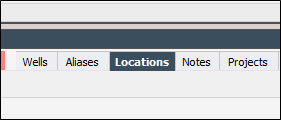
In the Related Records panel open the Locations tab.
-
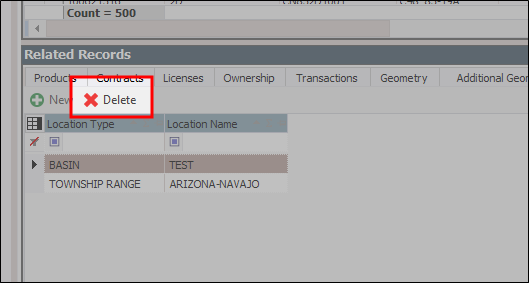
Highlight a row in the grid and click Delete
-
Confirm you want to delete the record.
-
The highlighted location will be removed from the list..
To add a new location to a single record:
- Select the record in the Seismic Properties grid.
- Open the Locations tab then click New.
- Select the Location Type and the Location Name from the drop-down menu.
- Click Save.
To add a shared location to multiple records, you can use the Additional tools menu.
To add a shared location:
-
Select the records in the Seismic grid.
-
On the Toolbar click Additional tools and select Add location.
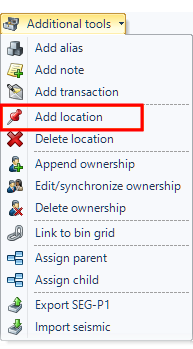
Tip: You can also right-click to open the context menu and then select Additional Tools>Add Location
The Add location window opens.
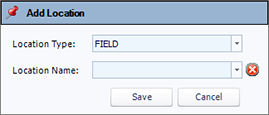
- Select the Location Type and the Location Name.
- Click Save.
The location saves to the Locations tab for each selected record.
If you want, you can use the steps listed above to add a location to a single record.
To delete a location, use the same process as described, using the Delete location option.