Select Version of EA Desktop:
Media is anything that is a storage device including a server, tape, map, optical, section or support media. Digital files must be linked to the host server.
The Media grid of the Catalog module is a working space for media items.
Linking files to a media will associate the files to the media in your data repository.
Exploration Archives supports many-to-many linking with the following scenarios:
- Multiple media to multiple files
- Multiple media to one file
- One media to multiple files
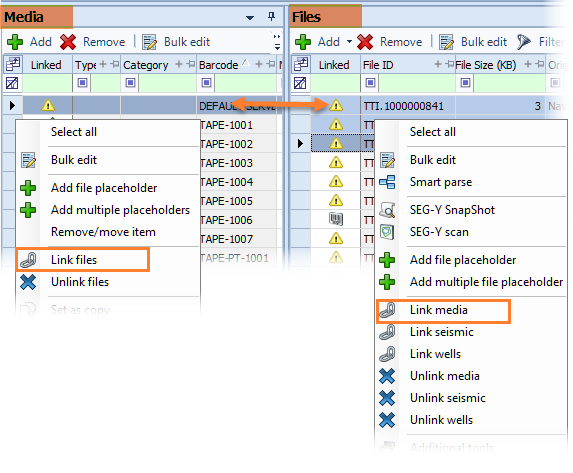
The Catalog module offers two methods for linking files and media; a drag and drop action and a context menu command.
Option 1: Use drag and drop to link files to media
The drag and drop method is reciprocal. Dragging from the media to the file grid produces the same results as dragging from the file grid to the media grid.
- Click to select a file in Files grid.
- Click and hold the file. Drag and drop the file to the media item in the Media grid.
The Linked columns update in each grid to show the linked icon.
Option 2: Use the context menu to link files to media
The linking action is reciprocal. The Link files action from the Media grid and the Link media action from the Files grid produce the same results.
- Click to select the media item(s) in the Media grid.
- In the Files grid, select the item(s) associated to the media.
- Right-click in the Files grid to open the context menu. Select Link files.
The Linked columns update in each grid to show the linked icon.
The Links tab in the Related Records panel displays the media linked to a file selected in the Files grid.