Select Version of EA Desktop:
Particular linking must be established to complete a catalog session.
The required linking includes:
- Each file must link to at lease one seismic.
- Each media must link to at least one file.
The Catalog module provides several features for verifying the links.
Link icons
The Linked column in the Media and Files grids indicates the linking relationships. Hover over the icons in the column to display the link definition.
For items in the Media grid, the linked icon indicates either linked to file or no links.
Files accommodate more versatile linking and the Linked column displays various linking icons.
Files grid Linked definitions:
|
|
No links |

|
Linked to media only |

|
Linked to seismic or well only |

|
Linked to both media and seismic or well |

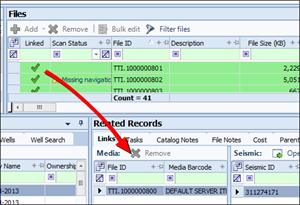
Items in the Files grid have a shaded background. A green background means the file is linked. A yellow background means you're missing a link to satisfy the required checks for files before you can push the items in production. Files that don’t have a colored background haven’t been linked yet.
Related Records Links tab
The Related Records panel includes a Links tab that displays the links of a selected file. Click on a file in the Files grid. Open the Links tab in Related Records. The links for the particular file display in separate panes for Media, Seismic and Wells.
Assets panel
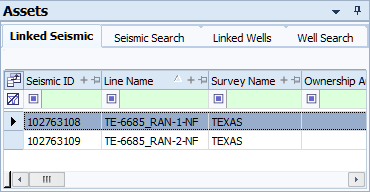
The Assets panel includes a Linked Seismic and Linked Wells tab. Click on these tabs to view the associated list of linked assets.
The Seismic Search and Well Search tabs include a linked icon  in the leader column for any linked assets that display in the list of search results.