Select Version of EA Desktop:
Files that appear in the Grid with a Scanned status are available for viewing in SEG-Y SnapShot. To scan files with a Not Scanned status, or to re-scan files marked as missing data or navigation, refer to Adding files to SEG-Y Scan.
The "snapshots" of your SEG-Y are compressed replicas for a quick view of time slices, live trace outline, time section and the EBCDIC header detail.
To view files in SEG-Y SnapShot:
-
To locate SEG-Y files in the File Properties grid, use the filter row of the Location column and enter ".sgy".
-
Use one of the following methods to select Scanned files for viewing:
- Click to select one row in the grid.
- To select multiple individual rows, press Ctrl while clicking to select.
- To select multiple consecutive rows, click and drag in the leader column in the grid.
-
Right-click on a selected row and select SEG-Y SnapShot in the context menu.
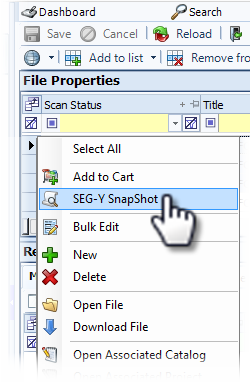
The SEG-Y SnapShot window opens.
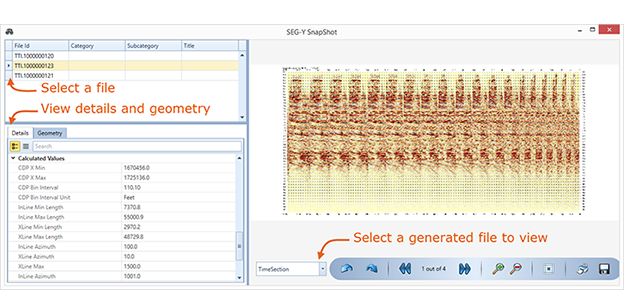
The grid in the upper left displays the files you selected for viewing. Click to select a file to view.
The lower left grid displays the Details tab and the Geometry tab. Click a tab to view the associated information.
The panel on the right displays the generated snapshot files:
- Time Slice
- Live Trace Outline
- Time Section
- EBCDIC
- Report
Click the drop-down to select a snapshot view. Use the navigation bar to browse, print or save the files.