Select Version of EA Desktop:
After adding files to SEG-Y Scan and specifying the settings, you can start the scan process.
SEG-Y Scan opens with the selected files listed with a Ready status.
The application performs the scan in the order that the files are listed. Before starting the scan, you can change the priority order of the files.
-
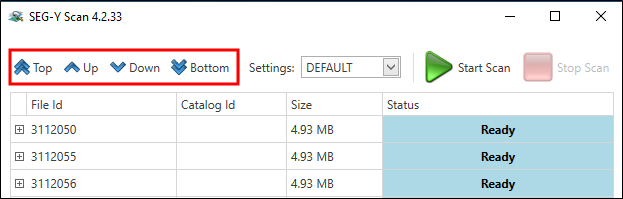
To move a file to a different priority in the list, select the file move it using the Top, Up, Down and Bottom buttons.
-
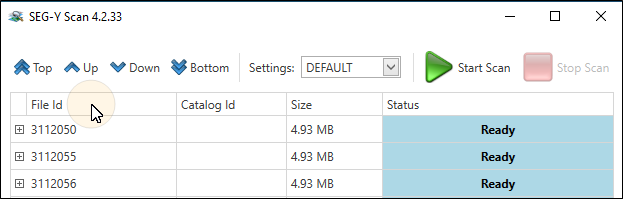
To display the list either ascending or descending by column category, click the column header.
-
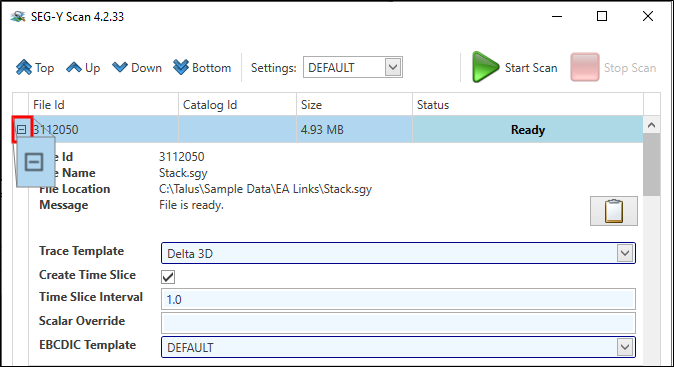
To view file details or to change the specified template for a file, click the down arrow in the leader column to expand the file information.
-
Click Start when you are ready to begin the scan. As the scan progresses, the Status column displays the status of each file.
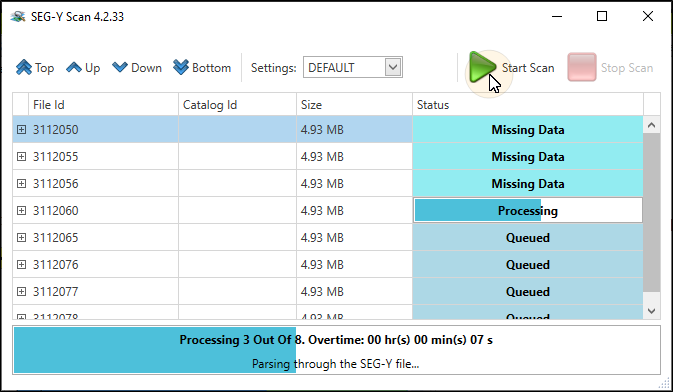
When complete, an information window opens and displays the result details of the scan. Click OK. The SEG-Y Scan window remains open for you to continue working.
SEG-Y Scan operates independently from Exploration Archives and will not interfere with performance. You can continue working in Exploration Archives while the scan completes.
For quick access to SEG-Y Scan while in progress, click on the icon in your taskbar