Select Version of EA Desktop:
Smart Parse is an efficient method for assigning details to category fields in the Exploration Archives grids. Smart Parse allows you to parse a file name and/or path to look for information that will link the file to media or seismic. It also allows you to set strings of text as various attributes on the file.
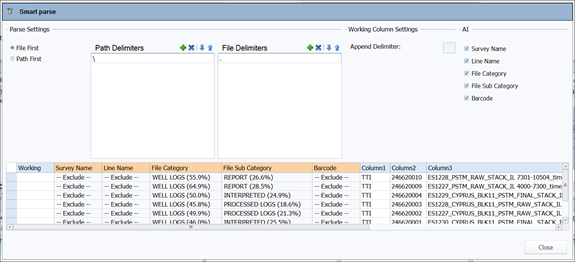
Smart Parse now includes Machine Learning (ML) parsing logic .
The Exploration Archives Bridge contains functions that use Machine Learning to try to extract information from a File Location path.
ML results along with % accuracy are displayed in five new columns: Survey Name, Line Name, File Category , File Sub Category, Media Barcode.
You have the option of selecting multiple rows and setting the ML results to exclude. This can be done when the % accuracy is too low or if the prediction is not trusted.
You can extract metadata from Smart Parse to:
- Link files to media based on barcode.
- Link files to seismic based on the seismic name.
- Set the Title field.
- Set the Description fields.
- Assign the Category and Sub-category.
To open Smart Parse:
-
Double-click a Catalog from the Catalog Properties grid to open a catalog session.
-
In the Files grid, select the file rows to be parsed.
Tip:Use Ctrl+Shift to select multiple rows that are not grouped together.
-
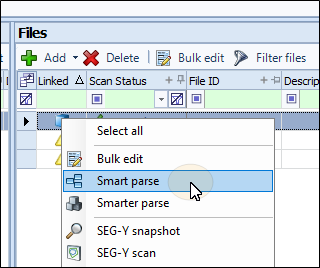
Right-click and select Smart Parse.
-
The Smart Parse window opens with segments of the file path (metadata) divided into columns.
To finish parsing the metadata, follow the remaining steps, as applicable.
- Set parse delimiters
- Add to column text
- Machine Learning (AI)
- Create custom metadata
- Assign parsed metadata
- Link files with Smart Parse
Smart Parse is an efficient method for assigning details to category fields in the Exploration Archives grids. Smart Parse allows you to parse a file name and/or path to look for information that will link the file to media or seismic. It also allows you to set strings of text as various attributes on the file.
You can extract metadata from Smart Parse to:
- Link files to media based on barcode.
- Link files to seismic based on the seismic name.
- Set the Title field.
- Set the Description fields.
- Assign the Category and Sub-category.
To open Smart Parse:
-
Double-click a Catalog from the Catalog Properties grid to open a catalog session.
-
In the Files grid, select the file rows to be parsed.
Tip:Use Ctrl+Shift to select multiple rows that are not grouped together.
-
Right-click and select Smart Parse.
-
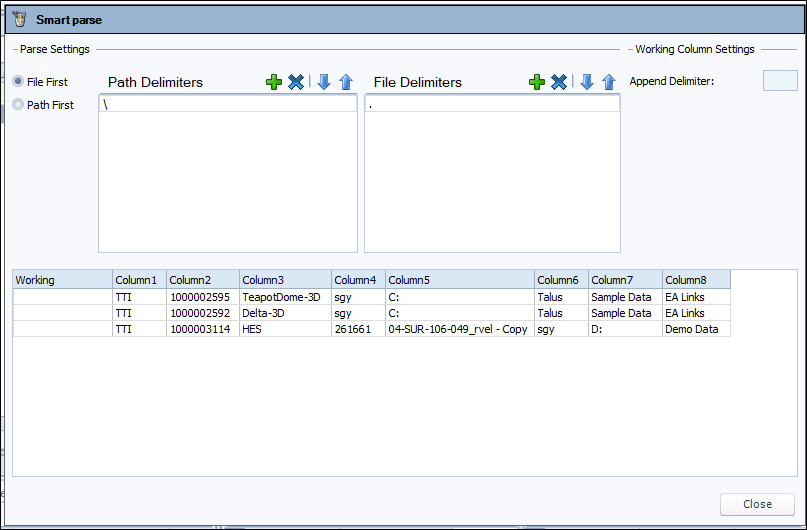
The Smart Parse window opens with segments of the file path (metadata) divided into columns.
To finish parsing the metadata, follow the remaining steps, as applicable.
- Set parse delimiters
- Add to column text
- Create custom metadata
- Assign parsed metadata
- Link files with Smart Parse