Select Version of EA Desktop:
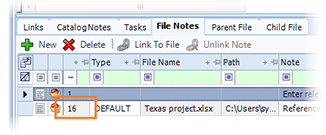
When you initially create a note, it links to the selected file in the Files grid. To link to multiple files, use the Link to file button in the File Notes tab.
To link a note to multiple files:
-
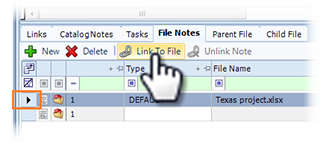
Select the target note in the File Notes tab and click Link to file. The Link to other file(s) window opens.
-
Click Add Files and select a search option to search the files.
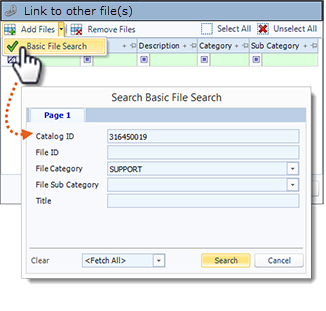
A search window opens. The scope of the search only includes the files that are in the current catalog session, as indicated in the image by the Catalog ID.
-
In the new window, select your search criteria and click Search. The results populate in the Link to other file(s) window.
-
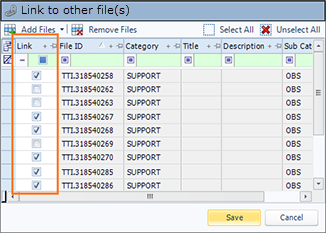
In the Link column, select the files to link the note to.
-
Click Save.
The window closes and the File Notes tab displays the number of files the note is linked to.