Select Version of EA Desktop:
You can add notes or attach a file to a well record.
To add a Note:
-
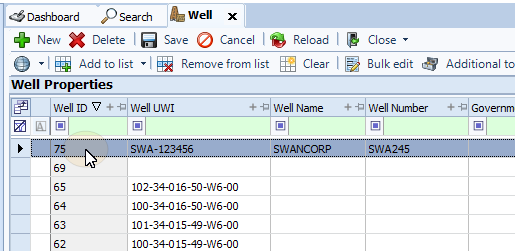
In the Well Properties panel select a well.
-
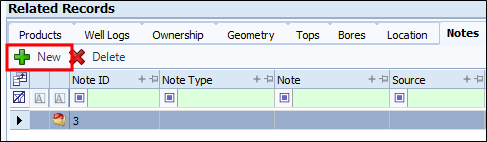
On the Related Records panel, select the Notes tab to make it active.

-
From the toolbar, click New. A blank row will appear in the grid.
 Note:
Note:A Note ID will be assigned to the row automatically.
-
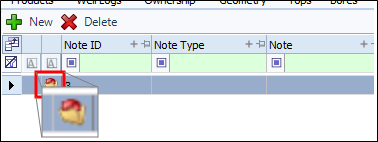
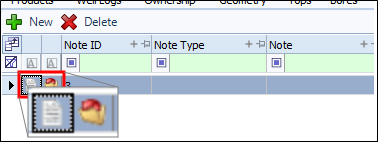
You can attach a file as a note. To do this, click the Browse button at the head of the row. An open dialog window will appear.
-
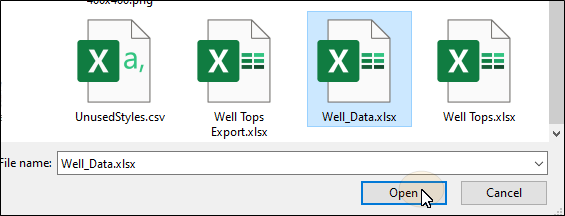
Navigate to where the file is stored on your device. Select the file then click Open.
The file will be attached. The File Name and Path columns will be filled out.
-
A View button will appear next to the Browse button. You can click this button and the attached file will open.
-
Select the Note Type from the drop-down list.
-
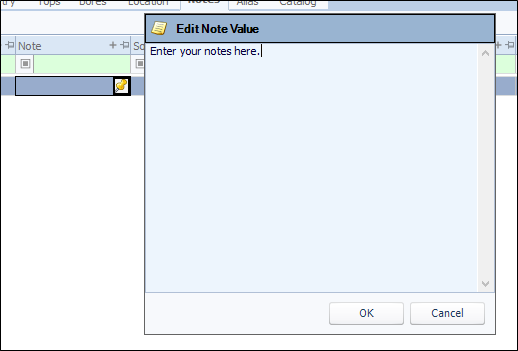
Hover over the Note field. A pin icon appears. Click the icon and the Edit Note Value window opens.
-
When you finish entering your notes, click OK. The field will show the first few characters of the note.
-
When finished, click Save.