Select Version of EA Desktop:
You can add Geometry sets and include data for a well.
To add a Geometry set to a well:
-
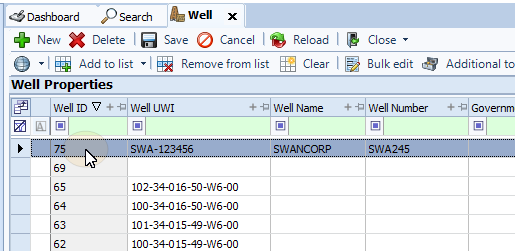
In the Well Properties panel select a well on the grid.
-
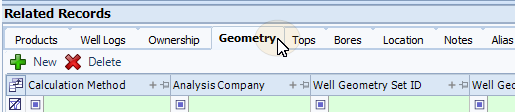
On the Related Records panel, select the Geometry tab to make it active.
The tab is divided into 3 parts:
-
Information about the Geometry set.

-
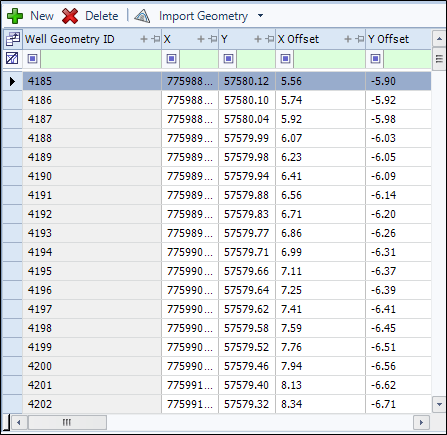
Where the points are added.
-
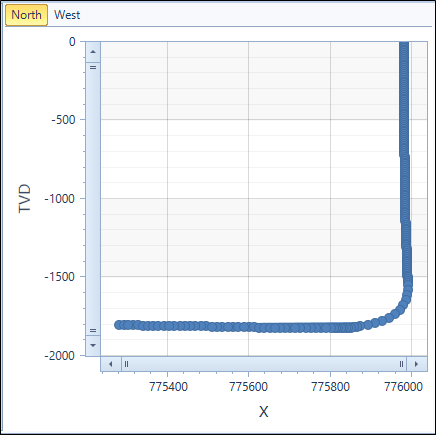
A graph with the Geometry plotted.
-
-
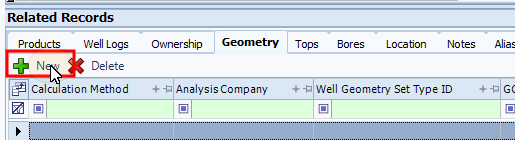
From the toolbar, click New. A blank row will appear in the grid.
 Note:
Note:An Well Geometry Set ID will be assigned to the row automatically. Once the Geometry set has been added, note that the New button in the Geometry data panel becomes active.
-
Enter all the relevant information in the columns for the row.
-
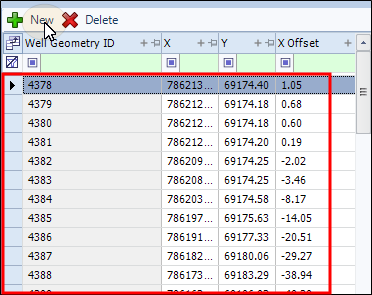
In the second panel click New and enter the relative information (X, Y, X Offset, Y Offset, Measured Depth). Repeat to add additional points.
-
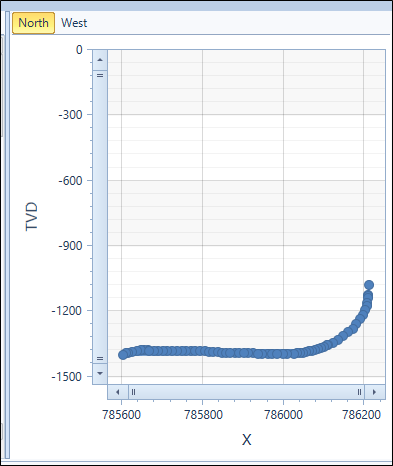
As you add Geometry, the graph in the third panel will start to display the data.
-
On the Toolbar, select Save.

You can add Geometry sets and include data for a well.
To add a Geometry set to a well:
-
In the Well Properties panel select a well on the grid.
-
On the Related Records panel, select the Geometry tab to make it active.
The tab is divided into 3 parts: Information about the Geometry set, the second is where the points are added, and the third is a graph with the Geometry plotted.
-
From the toolbar, click New. A blank row will appear in the grid.
Note:An Well Geometry Set ID will be assigned to the row automatically. Once the Geometry set has been added, note that the New button in the Geometry data panel becomes active.
-
Enter all the relevant information in the columns for the row.
-
In the second panel click New and enter the relative information (X, Y, X Offset, Y Offset, Measured Depth). Repeat to add additional points.
-
As you add Geometry, the graph in the third panel will start to display the data.
-
On the Toolbar, select Save.