Select Version of EA Desktop:
Tops data for a well can be added in one of 2 ways. Manual entry or import from an excel spreadsheet.
(Select a method to get instructions)
 To manually add Tops to a well:
-
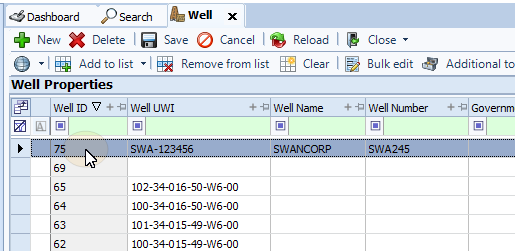
In the Well Properties panel select a well.
-
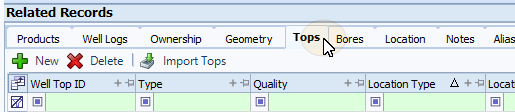
On the Related Records panel, select the Tops tab to make it active.
-
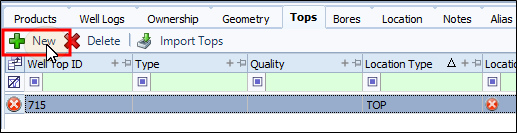
From the toolbar, click New. A blank row will appear in the grid.
 Note:
Note:An Well Top ID will be assigned to the row automatically. The circular X in each cell indicates a required information. When the fields have been filled and verified the indicator will disappear.
-
Enter all the relevant information in the columns for the row.
-
On the Toolbar, select Save.

 Import Tops from an Excel spreadsheet
-
In the toolbar in the Tops tab, select Import Tops.
 MadCap:conditions="Housekeeping.ExcludeForChatbot"
-
Navigate to where the Excel workbook is stored. Highlight the file.
-
Click Open.
-
After a short period the data will populate the grid.
-
Click Save.
The header columns in the Excel spreadsheet should match the headers on the grid. You can make an Excel template or sorts by manually adding a row to the grid, then exporting the grid. Use that file as a template for your data. Make sure delete the Well Top ID from the spreadsheet, as it’s generated automatically.