Select Version of EA Desktop:
Importing Geometry using Excel requires specific formatting for the detail to import correctly to Exploration Archives. You can create the template directly from the Geometry tab. For details on creating a template, see Create a Seismic import template.
To import Geometry details from Excel:
-
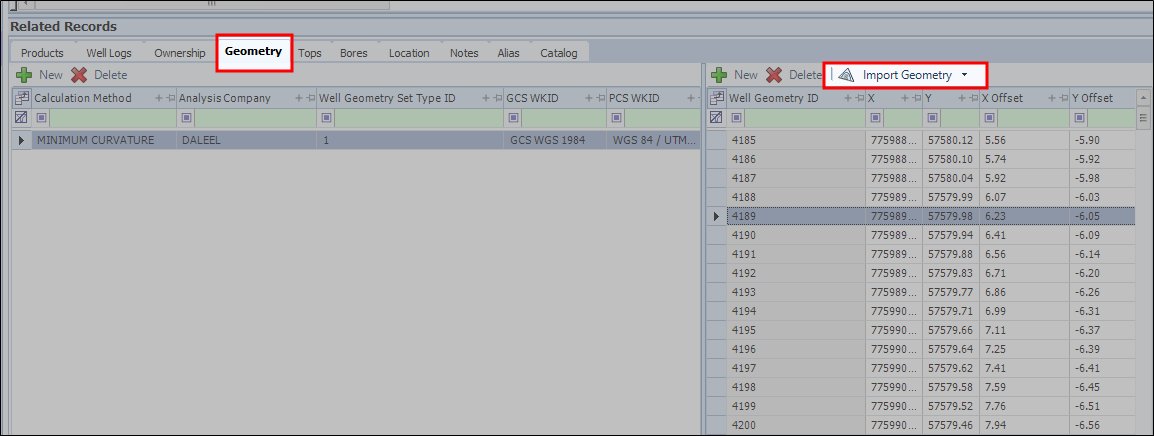
In the Geometry tab in the second panel, click Import Geometry.
-
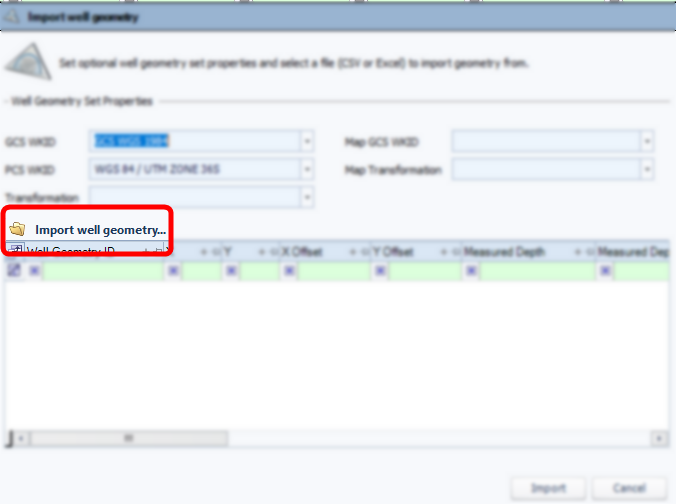
The Import well geometry opens.
-
Fill out the relevant fields, then click Import well geometry...
-
Navigate to the location of your spreadsheet.
-
Select the file and click Open.
-
During import, the system validates IDs
-
When the import is complete, review the items to ensure the data is accurate.
-
Correct any errors in the grid.
-
Click Save.