Select Version of EA Desktop:
The Additional tools populates all assigned ownerships in the edit window for you to review, adjust and synchronize as required.
 To append Ownership information:
-
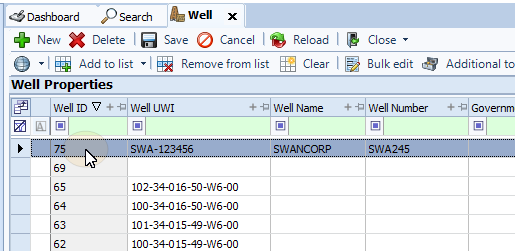
In the Well Properties panel select a well.
-
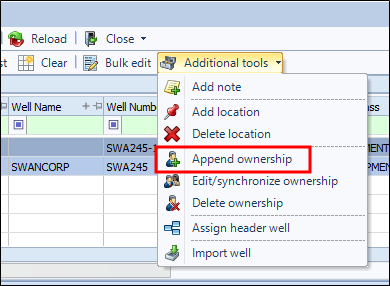
Select the Additional Tools menu on the tool bar and select Append ownership.
 Tip:
Tip:You can also right-click on the well and select Additional Tools>Append ownership from the context menu.
-
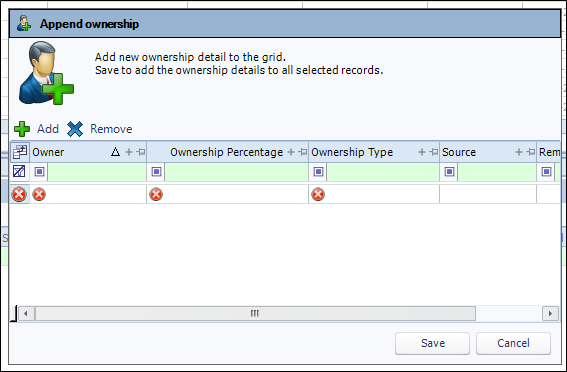
The Append ownership pane will open.
 Note:
Note:An Ownership ID will be assigned to the row automatically. The circular X beside the fields indicates required information. When the fields have been filled and verified the indicator(s) will disappear.
-
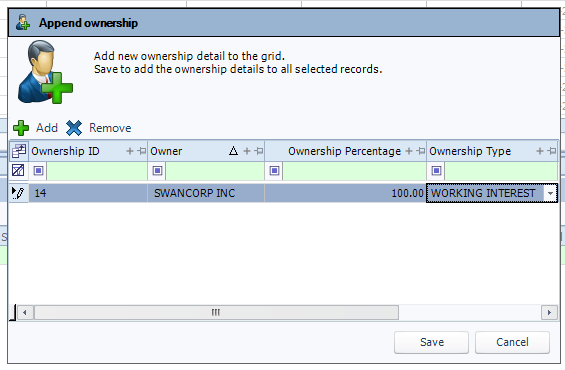
Select the information from the drop-down list, or you can double click in a field and type information.
Note:You can add multiple owners by clicking the Add button. Repeat as required.
-
Click Save. The pane will close and the location will be added under the Owners tab in the Related Records panel.
 Editing ownership for multiple wells
To edit ownership for multiple items:
-
In the main grid, select the record(s) to edit. You can either hold shift then click on consecutive well records, or hole the Ctrl key and click on non-consecutive
-
Click Additional tools>Edit/synchronize ownership in the local toolbar
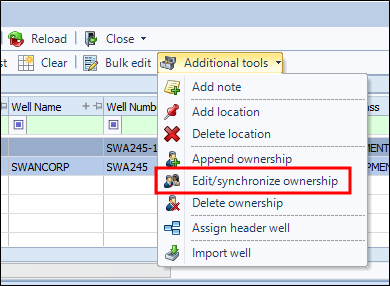
Tip: You can also right-click in the grid to open the context menu and click Additional tools>Edit/synchronize ownership.
-
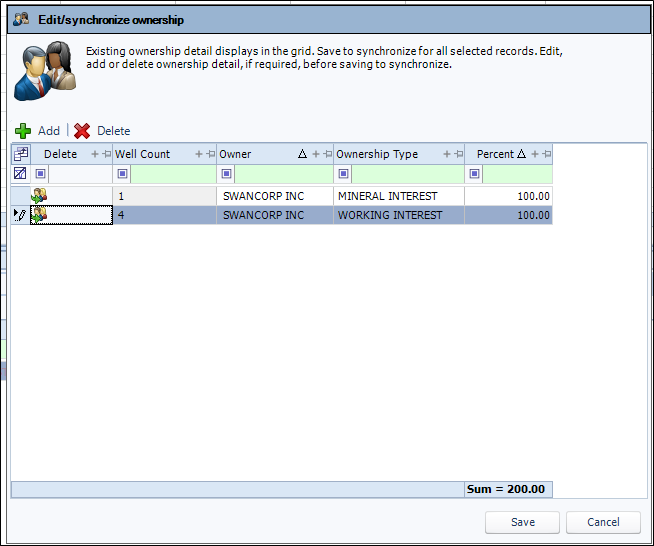
In the Edit/synchronize ownership pane, enter the relevant details.
-
To edit the Ownership Type andOwnership Sub Type, select the checkbox and select an entry for one or both fields. Refer to the acquisition ownership details to update.
-
To add a new ownership, click Add and enter the detail in the grid. Enter the required detail.
-
To delete an ownership, select the record on the grid and click Delete .
- When your edits are complete, click Save. The changes affect all of the records you selected before opening the edit window.
To delete an owner from a well:
-
In the Well Properties panel select a well.
-
Select the Additional Tools menu on the tool bar and select Delete ownership.
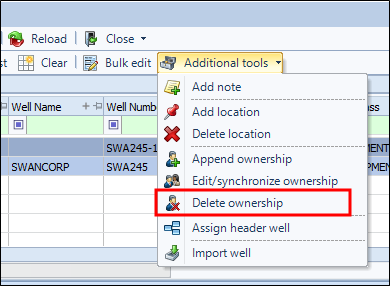 Tip:
Tip:You can also right-click on the well and select Additional Tools>Delete ownership from the context menu.
-
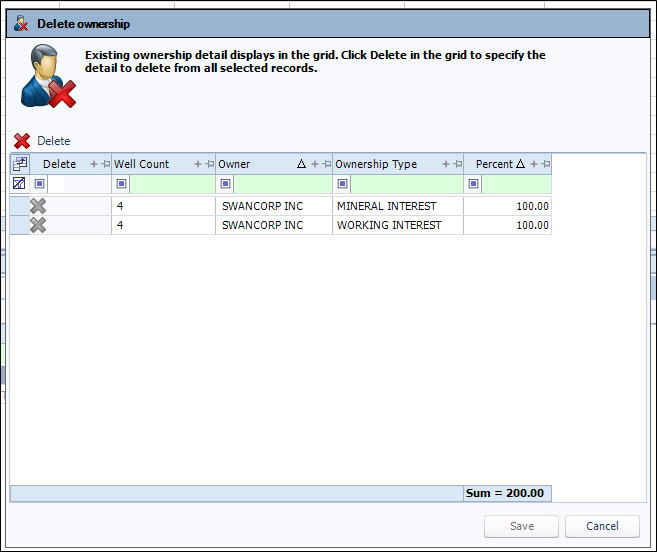
The Delete ownership pane will open.
-
Highlight the owner or owners you want to delete, then click Delete. The records will have an X appear at the head of the row.
-
Click Save.A confirmation dialog will ask if you’re sure you want to delete the locations from the well record.
-
Click OK. The pane will close and the location will be removed from the Owners tab in the Related Records panel.
 MadCap:conditions="Housekeeping.ExcludeForChatbot"