Select Version of EA Desktop:
You can use the Additional Geometry Sets to store points from other Coordinate systems.
You may have your main Geometry set for one type of coordinate system, but have additional Geometry sets for a different coordinate system you want people to have access to.
The Map view shows the points stored in the geometry tab where the additional geometry sets do not.
To add additional geometry sets:
-
In the main grid, select the record to modify.
-
Click the Additional Geometry Sets tab.
The grid on the left displays the coordinate details and the grid on the right displays the point details.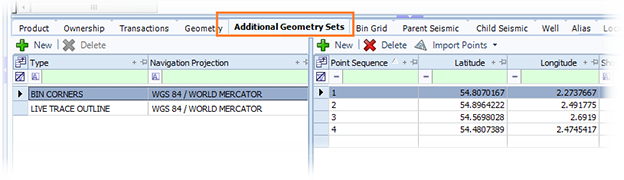
- Click New.
- Enter the applicable coordinate system information.
- To avoid data entry errors refer to Import points for geometry to import points from a CSV or Excel file.
- Click Save.
You can use the Additional Geometry Sets to store points from other Coordinate systems.
You may have your main Geometry set for one type of coordinate system, but have additional Geometry sets for a different coordinate system you want people to have access to.
The Map view shows the points stored in the geometry tab where the additional geometry sets do not.
To add additional geometry sets:
-
In the main grid, select the record to modify.
-
Click the Additional Geometry Sets tab.
The grid on the left displays the coordinate details and the grid on the right displays the point details.
- Click New.
- Enter the applicable coordinate system information.
- To avoid data entry errors refer to Import points for geometry to import points from a CSV or Excel file.
- Click Save.