Select Version of EA Desktop:
If you have a large amount of Geometry to enter for a record and you try and enter it manually it can be time consuming and there is chance for error.
To minimize that chance for error, you can create enter the data for Geometric Sets into an Excel® spreadsheet and then use Import Points to add the data.
To help you format the data correctly for the import, you can download a template to enter the data in.
To export a template:
-
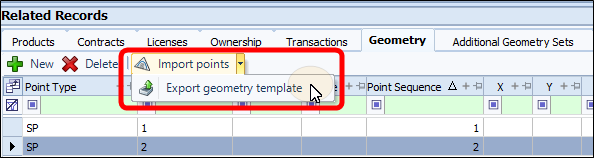
From the toolbar, expand the Import Points menu then select Export geometry template.
-
From the Save dialog navigate where you would like to save the template. If needed, enter a new name for the file.
-
Click Save.
-
After a few seconds the file will open in Excel.
Note:When Exporting a Template, the Template file is generated with any data that is populating the grid. If there is any data in the file, you can delete it. Make sure to leave the column headings.
Enter your data into the worksheet then save it.
To import points for a seismic record:
-
Select the target record in the Seismic grid.
-
Open the Geometry tab in Related Records.
-
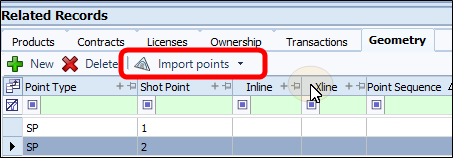
Click Import Points.
 MadCap:conditions="Housekeeping.ExcludeForChatbot"
-
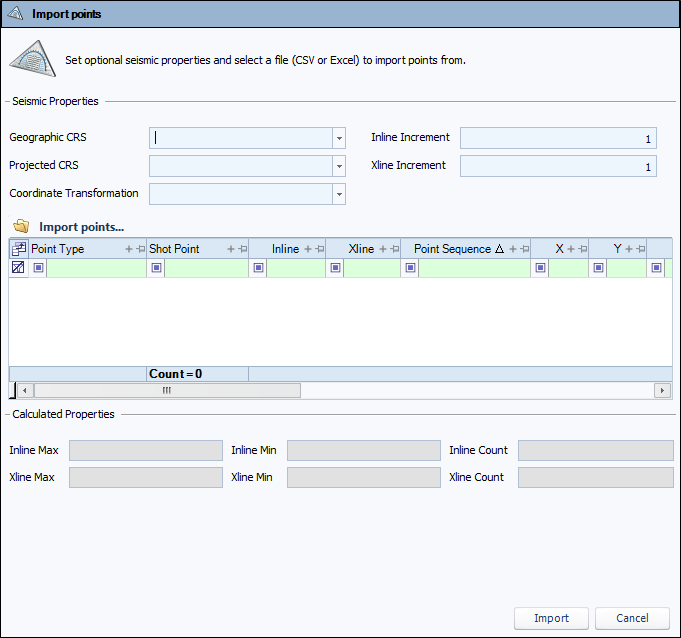
The Import Points window opens.
-
Enter the navigation datum, projection and coordinate transformation.
If you are loading 3D data, set the inline and xline increments. -
Click Import Points and navigate to the location on your PC for the CSV or Excel file.
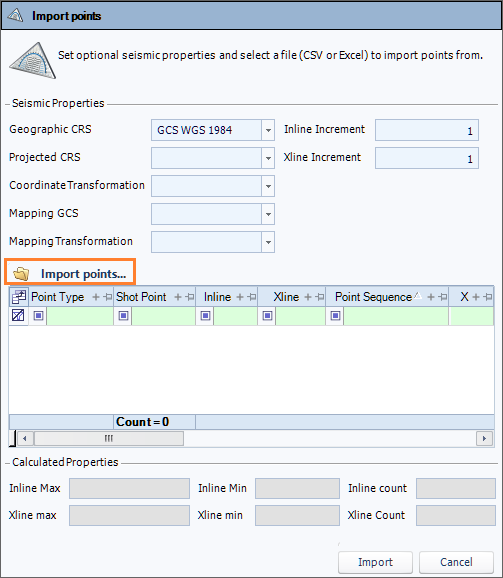
- Select the file and click Open. The import detail displays in the grid in the Import Points window.
- Verify that the information is correct and click Import. The information imports to the points grid.
- Click Save.
If you have a large amount of Geometry to enter for a record and you try and enter it manually it can be time consuming and there is chance for error.
To minimize that chance for error, you can create enter the data for Geometric Sets into an Excel® spreadsheet and then use Import Points to add the data.
To help you format the data correctly for the import, you can download a template to enter the data in.
-
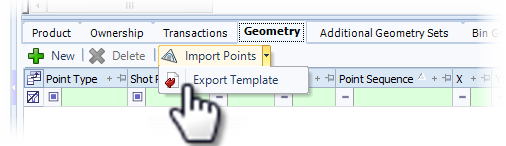
From the toolbar, expand the Import Points menu then select Export Template.
-
From the Save dialog navigate where you would like to save the template. If needed, enter a new name for the file.
-
Click Save.
-
After a few seconds the file will open in Excel.
Note:When Exporting a Template, the Template file is generated with any data that is populating the grid. If there is any data in the file, you can delete it. Make sure to leave the column headings.
Enter your data into the worksheet then save it.
To import points for a seismic record:
-
Select the target record in the Seismic grid.
-
Open the Geometry tab in Related Records.
-
Click Import Points. The Import Points window opens.
-
Enter the navigation datum, projection and coordinate transformation.
If you are loading 3D data, set the inline and xline increments. -
Click Import Points and navigate to the location on your PC for the CSV or Excel file.
- Select the file and click Open. The import detail displays in the grid in the Import Points window.
- Verify that the information is correct and click Import. The information imports to the points grid.
- Click Save.